 Migos AI Video
How to make a Hotel Lobby AI video from two photos
A practical guide to portraits, 10-second generation, 9:16 and 4:3 formats, video credits and downloads.
What you are making
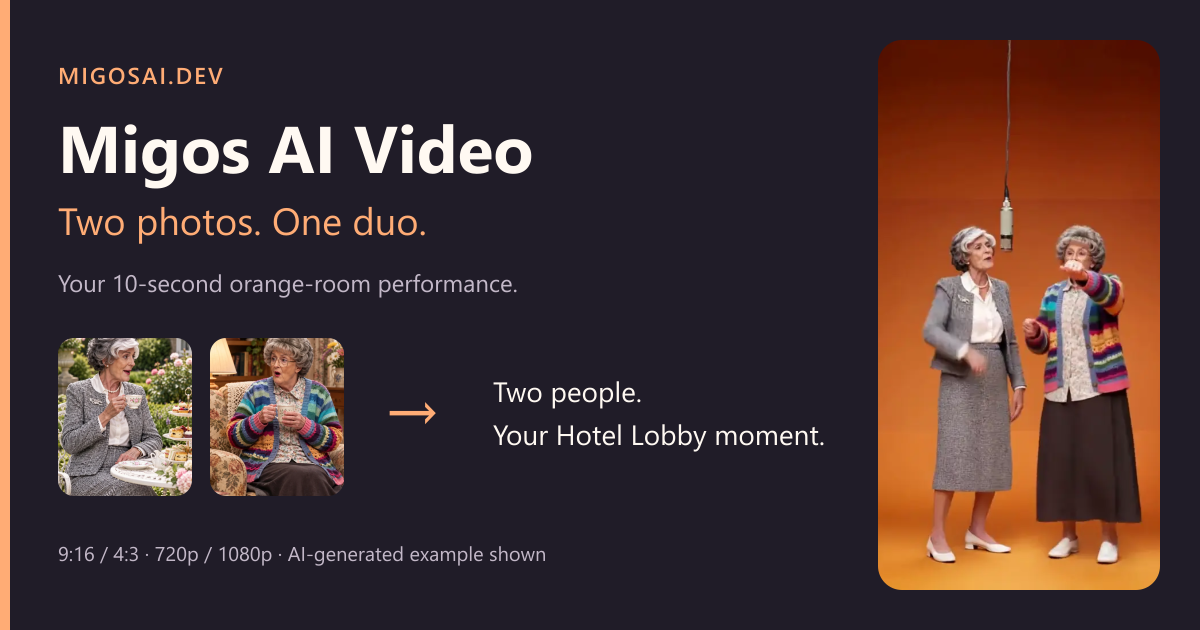
Migos AI turns two portrait photos into a 10-second orange-room duo performance. It uses a fixed performance video as a motion reference and asks Kling Video 3.0 Omni, through Replicate, to replace both performers. It aims to retain faces and clothing while following the source movement; it does not guarantee frame-perfect choreography or likeness.
The workflow is intended for two people. Pet replacement is not a validated feature, so do not buy credits expecting a guaranteed pet result. Migos AI is independent of Migos, COLORS and TikTok.
1. Choose two portraits you may use
Pick one clear photo of each person. Both people should agree to this use. Use a visible face, even lighting and an unobstructed outfit. JPG, PNG and WebP files up to 10 MB each are accepted. Group photos, sunglasses, heavy filters and objects crossing the face make a reliable replacement harder.
Upload both photos in the video studio. The first image becomes the left performer and the second becomes the right performer. Homepage examples are demonstrations; upload your own files to start a personal generation. Photos stay in the browser until you explicitly generate.
2. Select the output
All current generations use the fixed 10-second reference. Choose 9:16 for a vertical composition or 4:3 for a wider frame. Both formats cost the same at a given quality. The vertical workflow uses a prepared vertical reference; it does not add colored side panels to make a horizontal clip look vertical.
720p costs 51 credits per complete duo video. 1080p costs 68 credits. These are full two-person prices, not a separate charge for each performer. Check the pricing page for current one-time credit packs and applicable checkout taxes.
3. Confirm and generate
Check both portraits and tick the person-confirmation checkbox. Click Generate. Sign in if requested and ensure the account has enough credits. The service sends the two portraits and the reference performance for processing. Objects held in the portrait photos are ignored by the appearance prompt; hands and props in the generated video may still vary.
Keep the task reference. You can check My Videos if the page closes or your connection drops. An interrupted browser session does not itself mean the model job has failed. Avoid starting another task simply because one is still processing.
4. Review, download and share
When a job succeeds, preview the result and use Download video. Review faces, clothing, framing, motion and audio before sharing. Downloading a finished result does not start a new generation. Regenerating creates another paid task when submitted.
For a failed task, check the task status and credit history before trying again. See the refund policy for failed-generation credit handling and purchase-refund terms. Contact support with a task ID rather than sending passwords or payment-card details.
Before posting on social media
Label your post as AI-generated when appropriate and follow the platform's rules. Use audio you are allowed to publish; the product does not promise a license to the original Hotel Lobby recording. A simple caption is: “Our orange-room duo, made with migosai.dev.” Do not claim that another person performed or endorsed something they did not.
Start with two photos in the studio, or read the portrait selection guide first.